STUDIORAICHU

Ground Floor •
Rambling •
Clutter •
Materials
Hacking NVMe into AMI's Aptio BIOS for fun and non-profit
April 8, 2026
Originally published in 2600 Magazine, volume 43, number 1
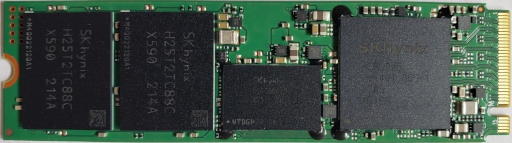
We all want our personal computers to be fast, and NVMe drives are the fastest forms of solid-state mass storage available to consumers at this moment. You can install an NVMe drive in any PC that has a PCIe bus, but that doesn't mean an older PC will know how to boot from it. However, if the PC uses AMI's Aptio BIOS (as many PCs made in the past 15 years do) it can be modified to make NVMe drives bootable.
The following guide is my extension of a forum post where I've taken the time to document my own variation on the procedure as a Linux user performing this modification on a Dell Inspiron 3647 that I'd bought for peanuts. The basic BIOS modification applies to any PC that doesn't already support NVMe and has an Aptio BIOS from AMI.
If the PC doesn't have an Intel chipset, the tools to read/write to the BIOS ROM will be different. Assuming it does, the first step is to identify which version of Intel's Evil Management Engine you have. The Inspiron 3647 uses Intel's H81 Express chipset, which has Evil Management Engine 9.0 bolted to the silicon.
Since we must read out and eventually write to the BIOS EEPROM, and the PC in question has an Intel chipset, we need Intel's Flash Programming Tool (FPT). This tool can be found in "Intel ME System Tools v9.1 r7" which is the version that corresponds with the version of Management Engine (ME) we have. You can download these ME system tools here, among other places.
My Inspiron 3647 runs Linux while the ME toolset is comprised of binaries built for Micro$oft Windows, DOS, and UEFI. I decided to go down the DOS route and flashed the latest FreeDOS release onto a USB stick. I made a DOS extended partition on the USB to store the FPT executable and a BIOS update executable from Dell.
NOTE: If you use Micro$oft Windows, you may skip the use of a FreeDOS bootable USB and instead use the Windows command prompt.
To boot FreeDOS, the UEFI Compatibility Support Module (CSM) must be enabled in the BIOS configuration.
Once inside FreeDOS and dropped to the DOS shell, the Intel FPT can be used to backup or flash the BIOS ROM. If you're not on the latest BIOS revision, run the update program now and restart before continuing.
The BIOS ROM can be read out and saved to a file with the following command:
fpt -bios -d backup.rom
Once done, reboot to your Linuxen of choice. I used AMI's Aptio MMTool to edit the BIOS ROM (backup.rom) and insert the NVMe module. You can learn how to use MMTool here, under "Step 2 - BIOS modification." It's a Windows program but will run under Wine. I had to use the "small" version of the NVMe module with the compression tick box ticked in order for it to fit in.
Once you are confident with the fidelity of your modified BIOS, copy it to the FreeDOS USB and flash it to the PC's BIOS EEPROM within FreeDOS using this command:
fpt -bios -f newbios.rom
If all has gone well, you will now be able to boot from NVMe drives. Don't forget to set your boot device priority in the BIOS configuration! You may disable the UEFI CSM if it is no longer needed.
You may wonder why I didn't provide a pre-modified BIOS ROM for this model of Dell Inspiron so you could simply flash it to yours and be on your merry way. The reason is that the BIOS ROM on these machines appears to contain some information that is unique to each unit, like the serial number. It is best to modify your own copy of the BIOS ROM.
If you were previously using a SATA drive and want to migrate your OS installation to the NVMe drive, any MBR partitions must be converted to GPT first. Back up important data before making changes.
Return to index